
What is WordPress Development?
WordPress Development refers to the process of creating, customizing, and maintaining websites using the WordPress platform. It includes everything from building themes and plugins to optimizing performance and ensuring security.
WordPress started as a blogging platform, but today it powers over 40% of websites worldwide. Developers use it to create blogs, business sites, eCommerce stores, and even complex web applications.
At its core, WordPress Development involves:
- Writing PHP, HTML, CSS, and JavaScript
- Working with themes and plugins
- Customizing website functionality
- Managing databases and performance
Why WordPress is So Popular?
There are several reasons why WordPress Development has become a top skill:
- Open-source platform (free to use and modify)
- Large community support
- Thousands of themes and plugins
- SEO-friendly structure
- Flexible for beginners and experts alike
Understanding the Core of WordPress
WordPress Architecture Overview
WordPress is built using:
- PHP (server-side scripting)
- MySQL (database)
- HTML/CSS (frontend)
- JavaScript (interactivity)
It follows a modular system where:
- Themes control design
- Plugins add functionality
Template Hierarchy
The template hierarchy determines how WordPress chooses which file to display content.
For example:
single.php→ single postpage.php→ static pagesarchive.php→ category pages
Understanding this hierarchy is essential for customizing layouts efficiently.
Themes in WordPress Development
What Are Themes?
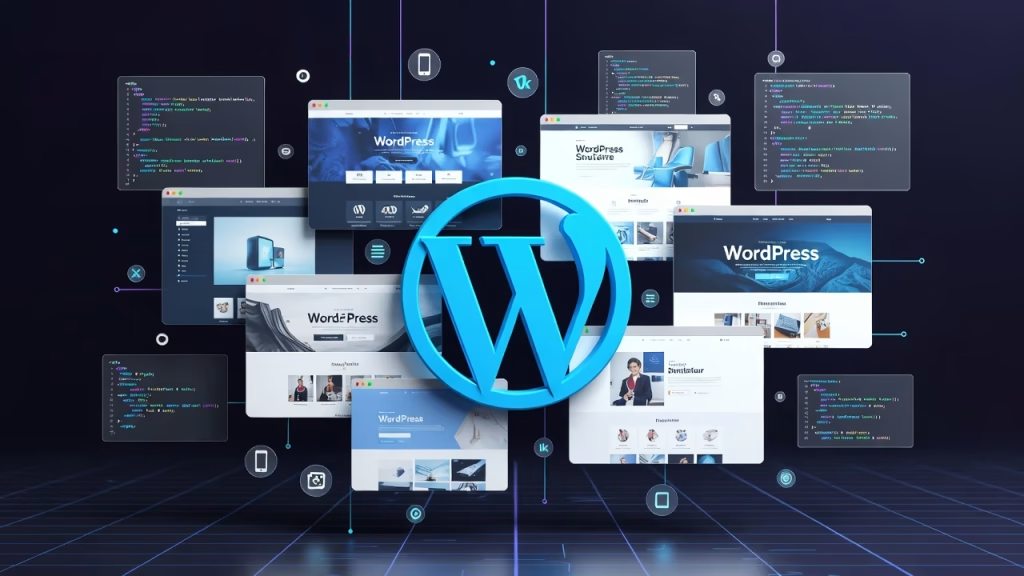
In WordPress Development, themes are the foundation of how a website looks and feels. A theme is a collection of files that control the visual design, layout, and presentation of a WordPress website without changing its core functionality.
Think of a theme as the “skin” of your website. While WordPress itself manages the content and functionality, the theme determines how that content is displayed to users.
Core Purpose of Themes
Themes serve three main purposes:
- Design Control – They define colors, fonts, spacing, and overall aesthetics.
- Layout Structure – They control how content is arranged (headers, footers, sidebars, grids).
- User Experience (UX) – They influence how users interact with your website.
A well-built theme ensures your website is:
- Visually appealing
- Easy to navigate
- Responsive across devices
Key Components of a WordPress Theme
A WordPress theme is not just one file, it’s a structured system of multiple files working together.
Here are the most important components:
style.css (Main Stylesheet)
This file defines:
- Theme metadata (name, author, version)
- CSS styling (colors, fonts, layout rules)
It acts as the design blueprint of your website.
index.php (Core Template File)
This is the fallback template used if no other template matches. It ensures WordPress always has something to display.
Template Files
These control how specific types of content are displayed:
header.php→ Top section of the sitefooter.php→ Bottom sectionsingle.php→ Individual blog postspage.php→ Static pagesarchive.php→ Category/tag listings
These files work within the template hierarchy, allowing WordPress to choose the correct layout dynamically.
functions.php (Theme Logic)
This file adds custom functionality such as:
- Registering menus
- Enqueueing scripts and styles
- Adding theme support features
It acts like a plugin but is tied specifically to the theme.
JavaScript & Assets
Themes often include:
- JavaScript files for interactivity
- Images and icons
- Fonts and animations
How Themes Work in WordPress Development?
When a user visits a page, WordPress:
- Retrieves content from the database
- Uses the template hierarchy to select the correct template file
- Applies styling from the theme
- Outputs the final HTML page
This separation of content (database) and design (theme) is what makes WordPress so flexible.
Types of WordPress Themes
Free WordPress Themes
- Available in the WordPress repository
- Good for beginners
- Limited customization
Premium Themes
- Paid themes with advanced features
- Better support and updates
- More design flexibility
Custom Themes
- Built from scratch by developers
- Fully tailored to business needs
- Optimized for performance and SEO
Child Themes: Safe Customization
A child theme is a sub-theme that inherits functionality from a parent theme.
Why it matters:
- You can modify design without altering original files
- Updates won’t overwrite your changes
- Keeps your code clean and maintainable
Theme Customization Options
Themes can be customized in several ways:
WordPress Customizer
Allows real-time changes like:
- Colors
- Typography
- Layout adjustments
Page Builders
Tools like Elementor or Gutenberg blocks enable drag-and-drop design.
Code-Level Customization
Advanced developers:
- Edit template files
- Use hooks and filters
- Add custom CSS/JS
Best Practices in Theme Development
To build or choose a good theme in WordPress Development, follow these best practices:
- Use clean and well-structured code
- Follow WordPress coding standards
- Ensure mobile responsiveness
- Optimize for speed and performance
- Make themes SEO-friendly
- Ensure accessibility compliance
Themes vs Plugins (Quick Comparison)
| Feature | Themes | Plugins |
|---|---|---|
| Purpose | Design & layout | Functionality |
| Affects UI | Yes | Sometimes |
| Controls features | No | Yes |
| Example | Website design | Contact forms, SEO tools |
Why Themes Are Critical in WordPress Development?
Themes are not just about looks, they directly impact:
- Performance (lightweight vs heavy themes)
- SEO (clean code improves rankings)
- User engagement (better design = more conversions)
- Scalability (flexible layouts for growth)
A poorly built theme can slow down your site or break functionality, while a well-optimized theme can dramatically improve user experience and search rankings.
In summary, themes are a core pillar of WordPress Development. They allow developers and designers to separate content from design, making websites easier to manage, customize, and scale.
Whether you’re using a pre-built theme or creating one from scratch, understanding how themes work will give you full control over your website’s appearance and performance.

Plugins and Functionality Extension
What Are Plugins?
In WordPress Development, plugins are software add-ons that extend what a WordPress website can do. A plugin adds new features or changes existing behavior without requiring you to edit the WordPress core files. Put simply, if a theme controls how a site looks, a plugin usually controls what a site does.
For example, a plugin can help you:
- add a contact form
- improve SEO
- create an online store
- secure the website
- connect to third-party services
- build custom workflows
That’s why plugins are one of the most powerful parts of WordPress Development. They make WordPress flexible enough to run everything from a simple blog to a large membership platform or business application.
The Main Purpose of Plugins
Plugins exist to extend WordPress safely and efficiently. Instead of rewriting core WordPress code every time you need a feature, you install or build a plugin.
Their main purposes include:
Adding New Functionality
Plugins can introduce features WordPress does not include by default, such as:
- booking systems
- form builders
- backup tools
- eCommerce
- multilingual support
Modifying Existing Behavior
Plugins can also change how WordPress already works. For example, they can:
- customize login pages
- change post display behavior
- modify admin settings
- adjust email sending logic
Keeping Custom Code Separate
A plugin lets developers place site-specific functionality in a separate package. This is a big deal because it keeps that logic independent from the theme.
For instance, if your website has:
- custom post types
- special taxonomies
- API integrations
- business rules
those should often live in a plugin, not in the theme.
How Plugins Work in WordPress?
WordPress includes a plugin system built around hooks and filters. These allow plugins to interact with WordPress without changing core files.
When WordPress loads, it:
- reads active plugins
- includes their PHP files
- runs plugin functions at specific points
- lets plugins alter content, behavior, or output
This system is what makes plugins so powerful. A plugin can “hook into” WordPress and add features almost anywhere:
- frontend
- backend dashboard
- database operations
- REST API responses
- editor behavior
- user authentication flow
So, plugins are not random extras. They are deeply integrated into the WordPress architecture.
What a Plugin Usually Contains?
A WordPress plugin can be very small or very complex. Some plugins are just one PHP file. Others are large systems with many folders and files. A typical plugin may include:
Main Plugin File
This file contains the plugin header and bootstrap code. The plugin header tells WordPress important details such as:
- plugin name
- version
- author
- description
It is usually the entry point of the plugin.
PHP Files
These contain the business logic. They may:
- register hooks
- create admin pages
- define custom functions
- connect to APIs
- handle form submissions
CSS and JavaScript Files
Plugins often load styles and scripts for:
- admin interfaces
- interactive frontend features
- block editor tools
- modal windows and dynamic forms
Developers should load these properly using enqueue scripts and styles, not by hardcoding them carelessly.
Templates
Some plugins include template files for displaying content on the frontend. For example:
- product layouts
- custom dashboard views
- form markup
Assets and Media
Icons, images, translations, and configuration files are often part of bigger plugins.
Plugins vs Themes
This distinction is very important in WordPress Development.
| Aspect | Themes | Plugins |
|---|---|---|
| Main role | Control design and layout | Add or change functionality |
| Affects appearance | Yes | Sometimes |
| Should hold business logic | Usually no | Yes |
| Can work independently of design | No | Yes |
A good rule is this:
- If the feature should remain even when you change the theme, it probably belongs in a plugin.
- If the feature is only about presentation, it probably belongs in the theme.
For example:
- a custom “Team Members” content type should usually be in a plugin
- the way the team section looks should usually be in the theme
This separation keeps websites cleaner and easier to maintain.
Types of WordPress Plugins
Plugins come in many forms. Here are the main categories.
Utility Plugins
These handle practical tasks like:
- backups
- redirects
- broken link checking
- image compression
SEO Plugins
These help with:
- meta tags
- XML sitemaps
- schema markup
- content analysis
Security Plugins
They may provide:
- firewall rules
- malware scanning
- login protection
- file monitoring
Performance Plugins
These focus on:
- caching strategies
- minification
- lazy loading
- database cleanup
eCommerce Plugins
These let WordPress become an online store with:
- products
- checkout
- payment gateways
- shipping settings
Developer Plugins
These help developers build or debug sites using:
- logging tools
- query monitors
- custom field managers
- migration utilities
Custom Plugins
These are built for a specific website or company. They may handle:
- internal workflows
- custom dashboards
- special integrations
- niche business logic
Why Plugins Matter So Much in WordPress Development?
Plugins are a major reason WordPress is so widely used. They let developers avoid reinventing the wheel.
Instead of coding every feature from scratch, you can:
- install a trusted plugin
- customize it
- or build your own when needed
This saves time, lowers cost, and speeds up project delivery.
Plugins also support scalability. As a website grows, plugins can help add:
- memberships
- multilingual content
- custom reporting
- automation
- CRM or marketing integration
In other words, plugins turn WordPress from a basic CMS into a full digital platform.
How Plugins Use Hooks and Filters?
Plugins rely heavily on hooks and filters, which are core to WordPress Development.
Actions
Actions let a plugin run code at a certain moment.
Examples:
- when WordPress initializes
- when a post is published
- when a user logs in
- when the admin dashboard loads
Filters
Filters let a plugin modify data before it is displayed or saved.
Examples:
- changing post content
- editing excerpt length
- modifying email messages
- altering query results
This system allows plugins to work cleanly with WordPress and with other plugins.
What Plugins Can Register or Create?
A plugin can do much more than just add a button or form. It can register core content structures and system behaviors, such as:
Custom Post Types
Plugins can create content types like:
- portfolios
- testimonials
- events
- courses
Taxonomies
They can add custom ways to organize content beyond categories and tags.
Shortcodes
Plugins can let users insert dynamic elements into posts or pages using shortcodes.
REST API Endpoints
A plugin can expose or consume data through the REST API, making it useful for apps and external systems.
Gutenberg Blocks
Modern plugins often create custom Gutenberg blocks for the block editor.
Widgets and Admin Menus
Plugins can add dashboard menus, settings screens, and reusable widgets.
Plugin Development Best Practices
In WordPress Development, plugin development best practices are the rules, habits, and coding standards that help developers build plugins that are safe, fast, maintainable, and compatible with WordPress core, themes, and other plugins.
A plugin may seem simple on the surface, but behind the scenes it interacts with the database, the admin panel, the frontend, users, and sometimes third-party services. Because of that, even a small mistake in plugin design can lead to major problems such as security holes, slow loading, broken layouts, update conflicts, or data loss.
That is why best practices matter so much. They help you build plugins that do not just “work for now,” but continue to work well over time.
Why Best Practices Matter in Plugin Development?
A WordPress plugin lives inside a shared ecosystem. It does not run alone. It must work with:
- WordPress core updates
- many hosting environments
- different PHP versions
- different themes
- many other installed plugins
- different user roles and permissions
So, plugin development is not only about writing code that performs a task. It is about writing code that behaves responsibly inside a larger system.
Good best practices help ensure that your plugin is:
- secure
- stable
- easy to update
- easy to debug
- compatible
- scalable
- user-friendly
Without best practices, a plugin may still function at first, but it often becomes fragile, messy, and risky.
Never Modify WordPress Core Files
One of the most important rules in WordPress Development is to never edit WordPress core files.
Core files are the files that come with WordPress itself. Changing them is a bad idea because:
- your changes will be lost during updates
- it makes troubleshooting harder
- it can break future compatibility
- it creates security and maintenance problems
A plugin should use WordPress APIs, hooks and filters, and proper extension points instead of altering the core.
That is the whole point of plugin architecture: WordPress is designed to be extended without hacking the system itself.
Use a Clear and Organized File Structure
As plugins grow, messy file organization becomes a serious problem. Even if your plugin starts as a single file, it is smart to organize it as though it may expand later.
A clean plugin structure often separates:
- admin code
- frontend code
- shared utilities
- templates
- assets like CSS and JavaScript
- language files
- include files or classes
For example, a plugin may be organized like this:
my-plugin/
├── my-plugin.php
├── includes/
├── admin/
├── public/
├── assets/
│   ├── css/
│   └── js/
├── templates/
└── languages/
This structure makes the plugin easier to read, easier to debug, and easier for other developers to work on.
A disorganized plugin may still run, but it becomes painful to maintain.
Follow WordPress Coding Standards
WordPress has its own coding standards for PHP, JavaScript, HTML, and CSS. Following these standards keeps your code consistent with the rest of the WordPress ecosystem.
Benefits include:
- better readability
- easier collaboration
- fewer mistakes
- easier code reviews
- smoother long-term maintenance
Consistency matters a lot. When all functions, spacing, naming, and file patterns follow a standard, the code becomes easier to understand at a glance.
This is especially helpful when:
- a team works on the same plugin
- the plugin is published publicly
- updates are needed months or years later
Clean code is not just prettier. It reduces friction.
Prefix Functions, Classes, and Constants
Because WordPress plugins share the same environment, naming conflicts are common when developers use generic names.
For example, a function named:
function create_settings_page() {}
is risky because another plugin might use the same name.
A better approach is to use a unique prefix:
function myplugin_create_settings_page() {}
This rule applies to:
- functions
- classes
- constants
- option names
- custom database keys
- action and filter names
Using prefixes prevents collisions and keeps your plugin isolated from others.
For large plugins, developers may also use namespaces or object-oriented architecture to further avoid conflicts.
Build Around Hooks and Filters
A good plugin should work with WordPress, not against it. That means using actions and filters whenever possible.
Hooks allow your plugin to:
- insert functionality at the right point
- modify existing data safely
- stay compatible with WordPress updates
- remain flexible and extensible
For example, instead of directly rewriting how content is displayed, a plugin can hook into the_content filter and modify the output there.
This is a core best practice because hooks are how WordPress is meant to be extended.
Even better, advanced plugin developers often add their own custom hooks inside their plugin so others can extend it later. That makes the plugin more professional and developer-friendly.
Sanitize, Validate, and Escape Data Properly
This is one of the most critical areas of plugin development.
Whenever a plugin handles data, it should do three things:
Sanitize Input
Sanitizing means cleaning incoming data before storing or processing it.
Examples:
- cleaning text fields
- stripping unwanted characters
- forcing data into expected formats
Validate Input
Validation checks whether the data is actually acceptable.
Examples:
- is the email address valid?
- is the number within the allowed range?
- is the required field empty?
Escape Output
Escaping means making data safe before displaying it on the page.
Examples:
- escaping HTML output
- escaping URLs
- escaping attributes
These three steps protect your plugin from common vulnerabilities such as:
- cross-site scripting (XSS)
- broken page output
- invalid database entries
- user-submitted malicious content
A strong plugin treats all external input as untrusted until proven safe.
That includes data from:
- forms
- query strings
- AJAX requests
- API responses
- database content
- uploaded files
Check User Capabilities and Permissions
Not every user should be allowed to do everything. A plugin must respect WordPress user roles and permissions.
For example:
- an administrator may manage plugin settings
- an editor may access limited content tools
- a subscriber should not change system settings
This means your plugin should check user capabilities before allowing sensitive actions.
Why this matters:
- protects admin functionality
- prevents unauthorized changes
- reduces security risks
- improves control in multi-user websites
Capability checks are especially important when working with:
- admin pages
- form submissions
- AJAX actions
- REST API endpoints
- data deletion or updates
Just because a button is hidden in the UI does not mean the action is secure. Permission checks must happen in the actual code.
Use Nonces for Form and Action Security
When your plugin performs actions like saving settings, deleting data, or sending requests, it should protect those actions using nonces.
A nonce helps verify that the request came from a trusted source and is not a forged request.
This is especially important for:
- admin forms
- AJAX requests
- delete links
- bulk actions
- custom post handling
Nonces help defend against cross-site request forgery (CSRF) attacks.
In simple terms, they make sure that a request was genuinely intended by an authorized user, not triggered by a malicious site or hidden action.
Enqueue Scripts and Styles Properly
One common mistake in plugin development is loading CSS or JavaScript incorrectly.
A plugin should never just dump scripts manually into the page header or footer. Instead, it should use WordPress enqueue functions.
Proper enqueueing helps with:
- dependency management
- load order control
- conflict reduction
- conditional loading
- performance optimization
It is also smart to load assets only where they are needed.
For example:
- admin-only styles should not load on the frontend
- a contact form script should not load on every page if the form appears on only one page
This reduces unnecessary page weight and improves performance.
The idea is simple: load less, load smarter.
Keep Business Logic Out of the Theme
This is a very important architectural best practice.
If functionality belongs to the site itself, it should usually live in a plugin, not in the theme.
Examples of plugin-worthy functionality:
- custom post types
- taxonomies
- API integrations
- user workflows
- settings panels
- form processing
- eCommerce logic
Why?
Because a site may change themes one day. If the functionality is trapped inside the theme, it disappears or breaks after the switch.
Plugins keep important features portable and independent from design.
The general rule is:
- design belongs in the theme
- functionality belongs in the plugin
This keeps the site more stable and future-proof.
Avoid Plugin Bloat
A good plugin should be focused. It should solve a clear problem without becoming overloaded with unnecessary features.
Plugin bloat happens when a plugin:
- tries to do too many things
- loads too many assets
- adds too many settings
- stores too much extra data
- creates a confusing admin experience
Bloated plugins often cause:
- slow performance
- harder maintenance
- larger security surface area
- more bugs
- more user confusion
A better approach is to keep the plugin modular and purposeful.
Ask:
- What problem does this plugin solve?
- What features are truly essential?
- Can this be made optional?
- Can this code be split into modules?
A lean plugin is easier to trust, easier to test, and easier to scale.
Write Reusable and Modular Code
As a plugin grows, repeating logic becomes dangerous. Repeated code is harder to update and easier to break.
That is why plugin developers should aim for modular code.
This means:
- separating responsibilities into functions or classes
- avoiding giant files
- reusing shared helpers
- keeping one function focused on one job
For example:
- one function handles data retrieval
- another validates input
- another renders output
- another handles admin settings
This makes the plugin easier to:
- test
- update
- extend
- debug
Modular code also supports future growth. A plugin that starts simple can evolve more cleanly when its pieces are separated from the beginning.
Plan for Performance from the Start
Performance should not be treated as an afterthought. A plugin that works correctly but slows down the site is still a weak plugin.
Good performance practices include:
- limiting database queries
- avoiding duplicate queries
- caching expensive operations
- loading assets conditionally
- avoiding large loops when possible
- using efficient data structures
- keeping API calls under control
For plugins that work with large data sets, database optimization becomes especially important.
Examples:
- use the right query methods
- avoid querying unnecessary records
- store settings efficiently
- clean up temporary data
- use transients or caching when useful
A plugin should respect both server resources and user experience.
Handle Database Work Carefully
Some plugins store custom settings or create their own database tables. This area needs careful planning.
Best practices include:
- only storing what you truly need
- using the WordPress options system properly
- creating custom tables only when necessary
- preparing SQL queries safely
- cleaning up unused data where appropriate
Poor database handling can lead to:
- slow queries
- bloated tables
- security problems
- difficult migrations
If your plugin creates custom tables, it should also manage:
- table creation
- version updates
- safe schema changes
- possible uninstall cleanup
Database work should always be deliberate and efficient.
Make the Plugin Easy to Debug
Every plugin eventually needs troubleshooting. Best practices make debugging easier.
A developer-friendly plugin should:
- use clear naming
- separate logic cleanly
- avoid hidden side effects
- fail gracefully
- provide meaningful notices when something goes wrong
Helpful debugging habits include:
- using WordPress debug constants
- logging important failures carefully
- checking for missing dependencies
- handling edge cases clearly
A plugin should not crash the whole site because one setting is missing or one API request fails. It should respond in a controlled way.
Good debugging design saves hours of frustration later.
Code for Compatibility
A plugin should be built to work well across many environments.
That includes compatibility with:
- different PHP versions
- different WordPress versions
- common themes
- multisite network setups
- different hosting environments
Compatibility best practices include:
- checking minimum version requirements
- using supported WordPress APIs
- avoiding deprecated functions
- testing in common scenarios
- handling differences gracefully
If a plugin depends on another plugin or tool, it should detect that dependency and show a helpful message instead of failing silently.
Compatibility is one of the biggest signs of a professional plugin.
Support Internationalization and Localization
If a plugin may be used by people in different languages, it should be built for translation.
That means:
- wrapping user-facing text in translation functions
- using a text domain
- keeping text strings clean and clear
- avoiding hardcoded output that cannot be translated
This makes the plugin more accessible to a global audience and more suitable for public release.
Even if the plugin is private today, building it with translation in mind is a smart long-term habit.
Create a Good Admin Experience
A plugin should not only work well in code. It should also feel clear and usable in the admin panel.
A good admin experience means:
- simple settings pages
- clear labels
- helpful instructions
- organized layout
- safe defaults
- meaningful error and success messages
A badly designed plugin may confuse users even if the code is strong.
When building admin interfaces, ask:
- Is this easy to understand?
- Are the setting names clear?
- Are users warned before destructive actions?
- Is the flow logical?
The best plugins reduce confusion and make the user feel in control.
Provide Safe Activation, Deactivation, and Uninstall Logic
A plugin has a lifecycle, and each stage should be handled carefully.
Activation
On activation, a plugin might:
- set default options
- create tables
- register rewrite rules
- prepare initial settings
Deactivation
On deactivation, it may:
- flush rewrite rules if needed
- stop scheduled tasks
- temporarily disable features cleanly
Uninstall
If the plugin is permanently removed, it may delete:
- plugin settings
- custom tables
- temporary data
But this must be done carefully. Some users want data removed, while others want it preserved.
A well-designed plugin respects that choice and avoids destructive surprises.
Document the Plugin Clearly
Documentation is often overlooked, but it is a real best practice.
Good documentation helps:
- other developers understand the code
- site owners use the plugin correctly
- future you remember how the plugin works
Documentation can include:
- inline code comments
- setup instructions
- hook references
- changelogs
- FAQ sections
- developer notes
The goal is not to comment every single line. It is to explain the “why” behind important logic and the “how” behind usage.
Well-documented plugins are easier to trust and easier to maintain.
Test Before Releasing
Testing is a core plugin development best practice.
Before release, a plugin should be tested for:
- activation and deactivation
- settings saving
- frontend output
- admin behavior
- user role restrictions
- edge cases
- theme compatibility
- plugin conflicts
- mobile responsiveness if relevant
It is also wise to test in:
- a localhost setup
- a staging environment
- multiple WordPress versions when possible
Testing catches the problems that code alone may hide.
A plugin should not be considered “done” just because it runs once on the developer’s machine.
Design for Extensibility
Professional plugins are often built so they can grow later.
This means:
- using custom hooks where appropriate
- keeping logic modular
- avoiding tightly coupled code
- allowing filters for settings or output
- separating data from presentation when possible
Extensibility matters because plugin needs often grow over time.
Today the plugin may do one task. Tomorrow it may need:
- a premium add-on
- a third-party integration
- a REST API layer
- Gutenberg blocks
- extra admin controls
A plugin built with extensibility in mind can adapt more easily.
Respect Privacy and Data Responsibility
If a plugin collects or stores user data, it must do so responsibly.
That includes:
- collecting only needed data
- being clear about what is stored
- protecting sensitive information
- avoiding careless exposure
- supporting privacy-related site needs where relevant
For example, if a plugin stores:
- names
- emails
- form submissions
- activity logs
- order details
it must treat that data carefully.
Responsible plugin development is not only technical. It is ethical too.
Keep Updates Safe and Predictable
As a plugin evolves, updates should not create chaos.
A good update process includes:
- version tracking
- backward compatibility awareness
- careful database migrations
- changelog documentation
- testing before release
Updates should not suddenly delete settings, rename structures carelessly, or break older sites without warning.
A plugin that updates safely earns user trust.
Common Mistakes These Best Practices Help Prevent
When developers ignore best practices, they often run into problems like:
- function name collisions
- insecure form handling
- broken admin pages
- slow database queries
- messy file structures
- hardcoded scripts
- data loss during uninstall
- plugin conflicts
- hard-to-maintain code
- update-related failures
Best practices exist to prevent these exact issues. They are not extra rules to make coding harder. They are protective habits that make plugin development smarter.
Plugin Development Best Practices are the foundation of professional WordPress plugin creation. They guide developers to build plugins that are not only functional, but also secure, maintainable, performant, and compatible with the wider WordPress ecosystem.
A strong plugin should:
- follow WordPress standards
- use clean structure
- sanitize, validate, and escape data
- respect user permissions
- enqueue scripts properly
- avoid bloat
- plan for performance
- support debugging and testing
- stay compatible and extensible
In simple terms, best practices help transform a plugin from a quick code snippet into a dependable software product.
So when someone asks, “What are plugin development best practices?”, the deeper answer is this:
They are the professional principles that ensure a WordPress plugin works safely today, remains maintainable tomorrow, and continues to serve users well as the website grows.
Security Considerations for Plugins
Plugins can improve a site, but they can also introduce risk if poorly built. A weak plugin may cause:
- SQL injection
- cross-site scripting
- privilege escalation
- performance issues
- plugin conflicts
That is why security hardening matters when choosing or building plugins.
Smart practices include:
- using trusted plugins from reliable developers
- keeping plugins updated
- removing unused plugins
- auditing code when possible
- limiting plugin bloat
In WordPress Development, a plugin should not only work well. It should also be secure and stable.
Performance Impact of Plugins
Plugins are useful, but too many poorly optimized plugins can slow a site down.
Common performance issues include:
- too many database queries
- unoptimized scripts
- loading assets on every page
- bloated admin processes
- weak caching strategies
A well-coded plugin should:
- load only what it needs
- avoid heavy queries
- support caching
- use database resources carefully
This is where database optimization, smart architecture, and testing become essential.
Plugin Conflicts and Compatibility
Because many plugins can run at the same time, conflicts can happen. A conflict may occur when:
- two plugins use the same function names
- scripts collide
- filters affect the same content unexpectedly
- one plugin assumes a setting that another changes
This is why developers use:
- debugging tools
- local testing
- clear code structure
- version checks
In a serious WordPress project, plugins should always be tested in a staging or localhost setup before being used on a live site.
Examples of Real-World Plugin Use
To make the concept easier, here are a few examples.
Example 1: Contact Form Plugin
A plugin adds a form builder, spam protection, submission storage, and email notifications.
Example 2: Custom Business Plugin
A real estate site might use a custom plugin to create:
- property listings
- agent profiles
- custom taxonomies for cities and property types
- REST API endpoints for mobile apps
Example 3: Editor Enhancement Plugin
A content-heavy site might use a plugin that adds:
- custom Gutenberg blocks
- ACF integration
- special admin controls for editors
These examples show that plugins can be small helpers or full systems.
When to Use a Plugin Instead of functions.php
Many beginners place custom code in functions.php, but that is not always the best choice. Use a plugin when:
- the feature is site functionality, not theme styling
- you want the feature to survive a theme switch
- the code is reusable
- the feature is large or business-critical
Use functions.php when:
- the code is directly tied to the active theme’s presentation
- the functionality is simple and theme-specific
A lot of developers create a small “site plugin” for custom features instead of piling everything into functions.php.

Are Plugins Always the Best Option?
Not always. Plugins are powerful, but adding too many can create complexity.
Sometimes the better solution is:
- writing a lightweight custom plugin
- coding a theme-specific feature
- removing unnecessary overlapping plugins
Good WordPress Development is not about installing dozens of plugins. It is about using the right plugins with care and purpose.
In WordPress Development, plugins are one of the most important building blocks of a website. They extend WordPress beyond its default features and allow developers to create custom, scalable, and highly functional websites without touching the core system.
A plugin can be as simple as a small shortcode tool or as advanced as a complete application layer with:
- custom post types
- taxonomies
- Gutenberg blocks
- REST API integrations
- security controls
- performance features
So, when someone asks, “What Are Plugins?”, the best answer is this: Plugins are the functional engines that expand what a WordPress website can do. They help developers build smarter websites, solve real business problems, and keep custom functionality organized, reusable, and maintainable.
Key Concepts Every Developer Must Know
Hooks and Filters
Hooks allow developers to modify WordPress behavior without editing core files.
Types:
- Actions → Execute functions
- Filters → Modify data
Shortcodes and WP Query
- Shortcodes allow embedding dynamic content inside posts.
- WP Query helps retrieve posts from the database.
Example use:
- Display latest posts
- Filter by category
Taxonomies and Custom Post Types
- Custom Post Types: Create new content types (e.g., portfolios)
- Taxonomies: Organize content (categories, tags)
Advanced Development Techniques
REST API in WordPress
The REST API allows communication between WordPress and external apps.
Use cases:
- Mobile apps
- Headless CMS
- Third-party integrations
Gutenberg Blocks Development
Gutenberg is the modern WordPress editor.
Developers can:
- Create custom blocks
- Build reusable layouts
- Enhance user editing experience
ACF Integration for Custom Fields
Advanced Custom Fields (ACF) helps:
- Add structured data
- Customize admin interface
- Improve content management
Backend Essentials
functions.php and Script Enqueueing
The functions.php file is used to:
- Add features
- Register menus
- Enqueue scripts properly
Enqueue scripts ensures:
- Proper loading order
- Avoids conflicts
Database Optimization Techniques
To improve performance:
- Clean unused data
- Optimize queries
- Use indexing
Performance and Security
Caching Strategies
Caching improves website speed.
Types:
- Browser caching
- Page caching
- Object caching
Security Hardening Best Practices
Important steps:
- Use strong passwords
- Install security plugins
- Disable file editing
- Keep WordPress updated
Development Environment Setup
Localhost Setup for Development
Developers often use:
- XAMPP
- Local by Flywheel
- MAMP
Benefits:
- Safe testing
- Faster development
- No live site risks
Debugging Tools and Techniques
Useful tools:
- Debug mode (
WP_DEBUG) - Query Monitor plugin
- Browser developer tools
Scaling WordPress Projects
Multisite Network Explained
WordPress Multisite allows multiple websites under one installation.
Use cases:
- University networks
- Franchise websites
- SaaS platforms
SEO and Best Practices
Writing Clean and Maintainable Code
Best practices include:
- Use proper indentation
- Follow WordPress coding standards
- Comment your code
- Avoid redundancy
FAQs
WordPress Development is a powerful and versatile skill that opens doors to endless possibilities in web development. From creating stunning themes to building complex plugins and integrating APIs, WordPress offers a complete ecosystem for developers of all levels.
By mastering concepts like hooks and filters, custom post types, REST API, and caching strategies, you can build fast, secure, and scalable websites.
Whether you’re a beginner or an experienced developer, investing time in learning WordPress Development is a smart move in today’s digital world.