Why Updating Your WordPress Theme Matters
Updating your WordPress theme is essential for keeping your site secure, fast, and fully compatible with the latest WordPress core updates. Themes are regularly updated by freelance WordPress website developers to fix bugs, improve site performance, enhance design features, and patch security vulnerabilities. Ignoring these updates can lead to security breaches, poor site performance, and even compatibility issues with modern plugins.
However, many website owners hesitate to update their theme because of one major fear losing customizations. If you’ve spent hours fine-tuning your design, layout, and functionality, the thought of wiping it all out with one click can be nerve-wracking. The good news? You can update your WordPress theme safely without losing customization, as long as you follow a structured, careful approach.
Understanding WordPress Theme Updates
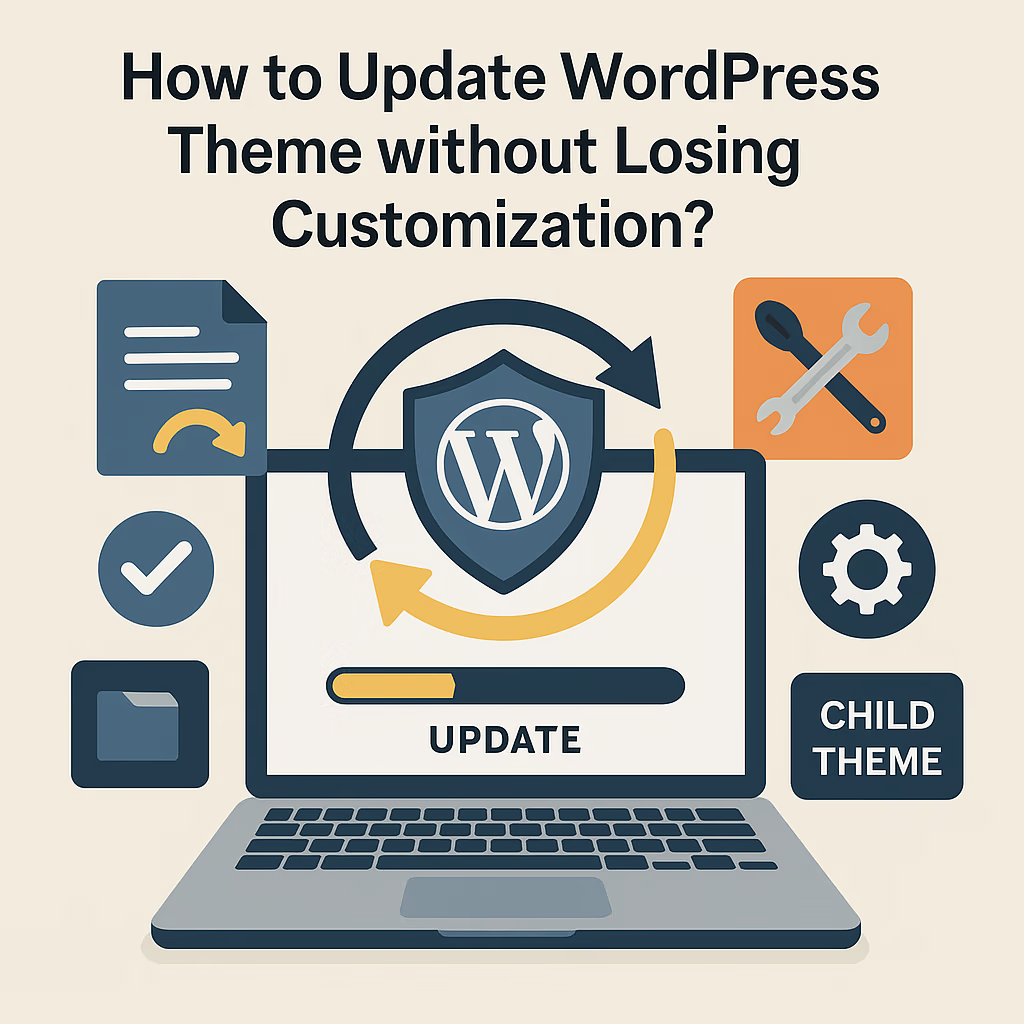
A WordPress theme update replaces existing theme files with newer versions provided by the developer. These updates often contain security patches, performance improvements, and feature enhancements. Unfortunately, if you’ve modified your theme directly (without using a child theme), these updates can overwrite your custom code or styling.
Misconceptions like “updates aren’t necessary if my site works fine” can be dangerous. Skipping updates exposes your site to vulnerabilities that hackers can exploit through outdated code. The best approach is to treat updates as regular maintenance just like changing the oil in your car.
The Risk of Losing Customization
Every time you update a theme, you’re replacing its files. If you’ve made edits directly to theme files such as style.css, functions.php, or template files, those modifications will vanish. Custom CSS, additional functions, or layout tweaks can disappear, forcing you to start over.
That’s why WordPress experts emphasize child theme preservation. A child theme acts as a protective layer that keeps your custom changes intact, even when the parent theme updates.
Pre-Update Preparation Checklist
Before hitting that “Update” button, follow this essential checklist to safeguard your website:
- Backup before update – Always create a complete backup of your WordPress site, including files and the database.
- Check plugin compatibility – Ensure that your plugins are compatible with the new theme version.
- Create a staging environment – Test the update on a clone of your live site first.
- Review changelogs – Read the theme’s changelog to understand what’s changed.
Step 1 – Backup Your WordPress Website
You can use tools like UpdraftPlus, Duplicator, or All-in-One WP Migration to create a full backup. Alternatively, back up manually using cPanel or an FTP client by downloading your wp-content folder and exporting your database.
Step 2 – Test Updates on a Staging Environment
Most quality hosting providers like SiteGround, Bluehost, or WP Engine offer built-in staging tools. Testing in a staging environment ensures that theme updates won’t break your live site.

Using Child Themes to Preserve Customizations
A child theme is a separate theme that inherits the design and functionality of the main (parent) theme. When you update the parent theme, your modifications in the child theme remain untouched.
How Child Themes Prevent Data Loss?
Your child theme contains its own style.css and functions.php files, allowing you to override parent theme elements safely. Even if the parent theme updates, your child theme’s code stays intact.
You can create a child theme manually or use plugins like Child Theme Configurator.
Theme Compatibility and Version Control
Before updating, always verify theme compatibility with your current WordPress version and installed plugins. Compatibility testing ensures that nothing breaks after the update.
Using Version Control Tools for Freelance WordPress Website Developers
For freelance WordPress website developers or agencies, using Git or SVN helps track changes efficiently. This makes it easier to roll back updates if something goes wrong.
Automated vs Manual Theme Updates
WordPress offers automated theme updates, which can save time. However, they can also introduce risks if the update causes a conflict.
When to Avoid Automated Updates
If your site relies heavily on custom code, complex plugins, or advanced integrations, avoid automated updates. Instead, test updates manually to maintain stability.
Best Practices for Secure Theme Updates
- Always back up before updating.
- Use a staging site to test new versions.
- Monitor update notifications in your dashboard.
- Implement rollback options using plugins like WP Rollback.
Monitoring Update Notifications
Stay updated by enabling email alerts or using management tools like ManageWP or MainWP to track multiple sites efficiently.
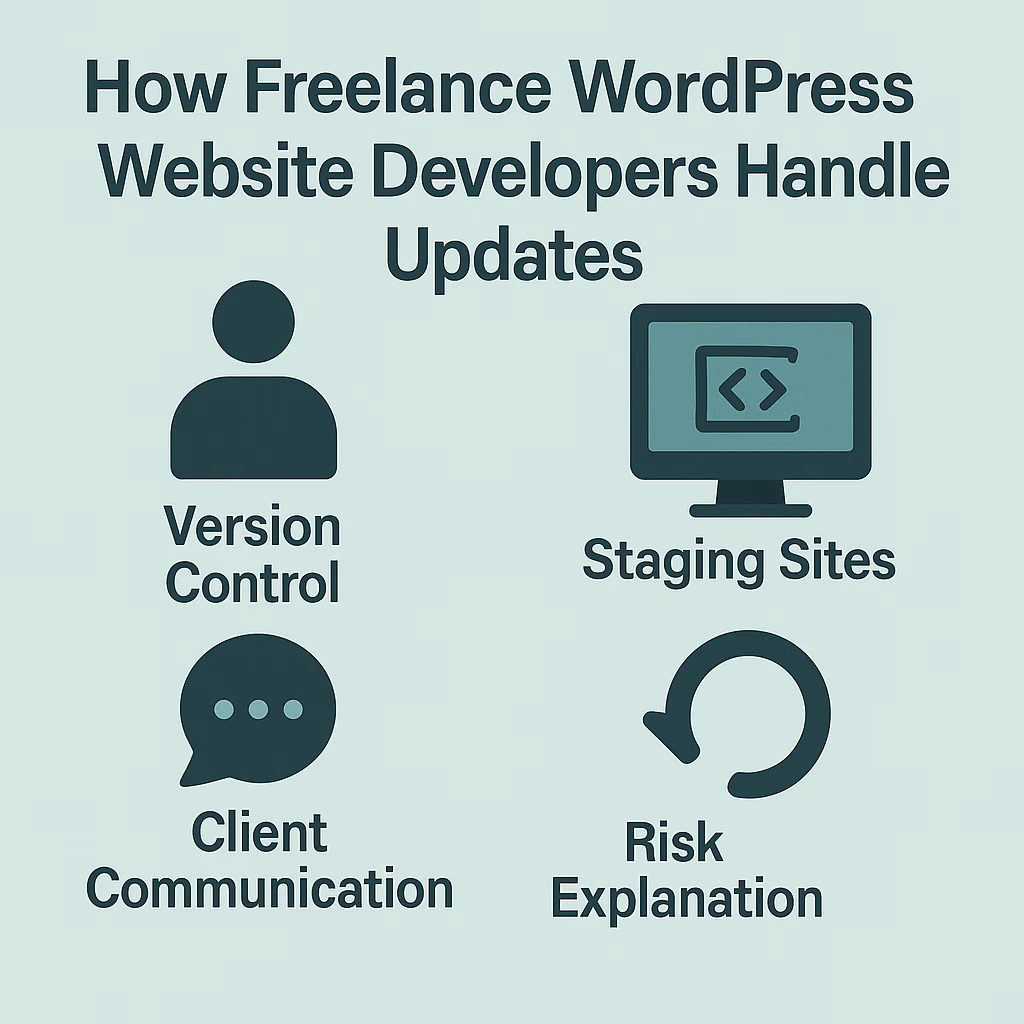
How Freelance WordPress Website Developers Handle Updates
Professional developers use a combination of version control, staging sites, and backup automation to ensure zero downtime. They also communicate with clients before performing updates, explaining the process and potential risks.
If you’re not confident doing this yourself, hiring a freelance WordPress website developer can save you from unexpected theme crashes.
Troubleshooting Post-Update Issues
If something breaks after an update:
- Clear your cache and refresh.
- Disable plugins one by one to identify conflicts.
- Revert to your backup if needed.
Tools like WP Rollback allow you to restore a previous theme version instantly.

Essential Plugins for Safe Theme Updates
| Purpose | Recommended Plugin |
|---|---|
| Backup | UpdraftPlus, BlogVault |
| Staging | WP Staging, Duplicator |
| Rollback | WP Rollback |
| Version Control | GitHub Integration |
Common Mistakes to Avoid
- Updating without a backup
- Editing parent theme files directly
- Ignoring changelogs
- Forgetting to test on staging
Avoid these pitfalls, and your update process will always run smoothly.
FAQs about Updating WordPress Themes
1. Will I lose my settings if I update my WordPress theme?
If your theme supports the WordPress Customizer, most settings will stay. Custom file edits, however, may be lost.
2. What’s the safest way to update my theme?
Always back up, test on a staging site, and use a child theme.
3. Can I update a theme via FTP?
Yes. Simply replace theme files manually using FTP but ensure you’ve backed up first.
4. How often should I update my theme?
Whenever an update is available, ideally after testing for compatibility.
5. What if my theme update breaks the site?
Restore your backup or use WP Rollback to revert to the previous version.
6. Do freelancers handle updates differently?
Yes, professional developers often use staging sites and version control for safer updates.
Keep Your Site Secure and Customizations Intact
Updating your WordPress theme doesn’t have to be scary. With the right preparation backups, child themes, compatibility checks, and version control you can enjoy all the benefits of an updated theme without losing your hard work.
Keep your website safe, secure, and optimized for performance because a well-maintained site builds trust and delivers a better user experience.